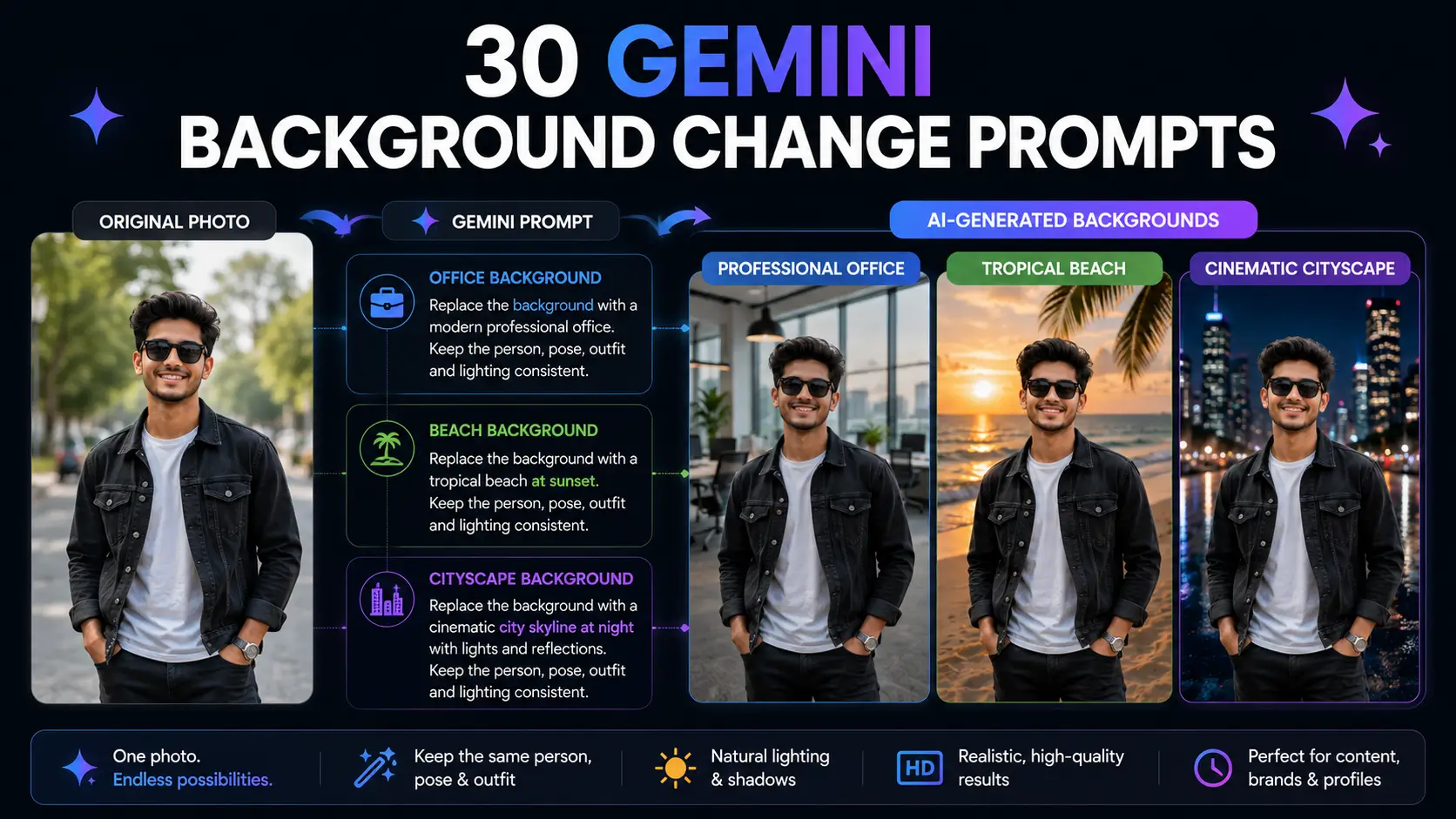
30 Gemini AI Photo Background Change Prompts for Realistic Results
Changing the background of a photo sounds like one of the simplest things you can ask an AI to do.
Upload an image. Type, “Change the background to a beach.” Wait for the result.
Sometimes it works surprisingly well. Other times, the new image looks slightly off. The person may be standing under lighting that does not match the scene. Shadows may point in the wrong direction. The background may be sharp while the subject looks like it came from a completely different camera.
The problem is usually not that the idea was too ambitious. The prompt was simply incomplete.
A better Gemini AI photo background change prompt does more than name a location. It tells the AI what kind of environment to create and how the original subject should fit into it.
For example:
Basic prompt:
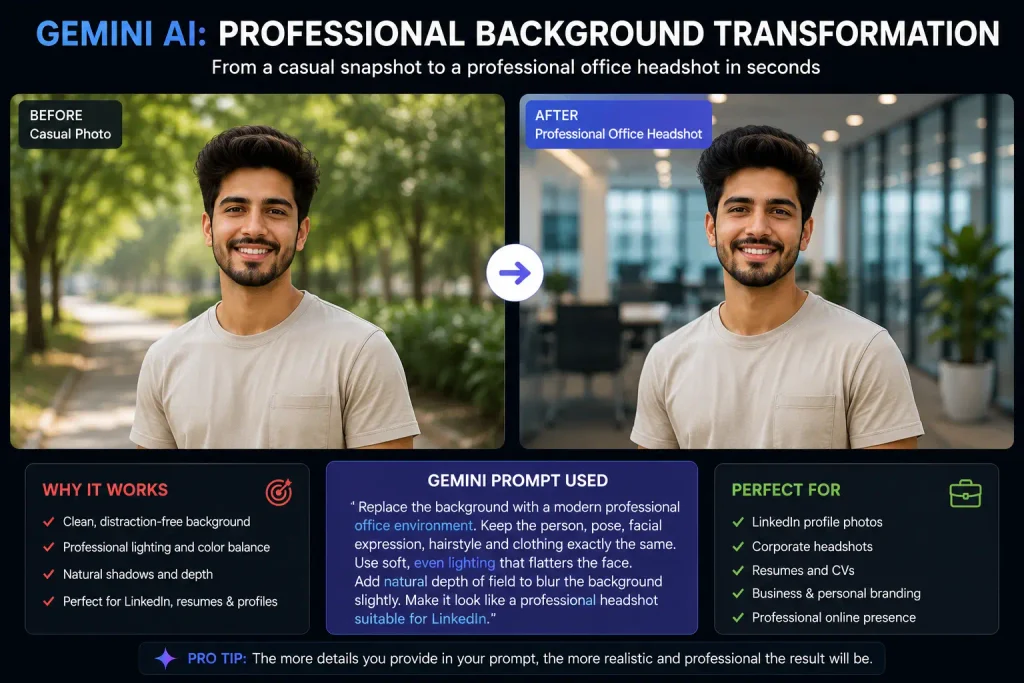
Change the background to a modern office.
Better prompt:
Replace the existing background with a modern professional office featuring natural window light and subtle depth of field. Match the lighting direction and shadows to the original subject. Keep the person’s face, hairstyle, clothing and pose unchanged.
That extra detail gives Gemini a clearer editing task.
Google’s Gemini Apps support uploading an existing image and asking Gemini to edit it, while Google’s image guidance encourages users to describe visual details such as the subject, setting, style and composition.
The five-part formula for changing a photo background with Gemini
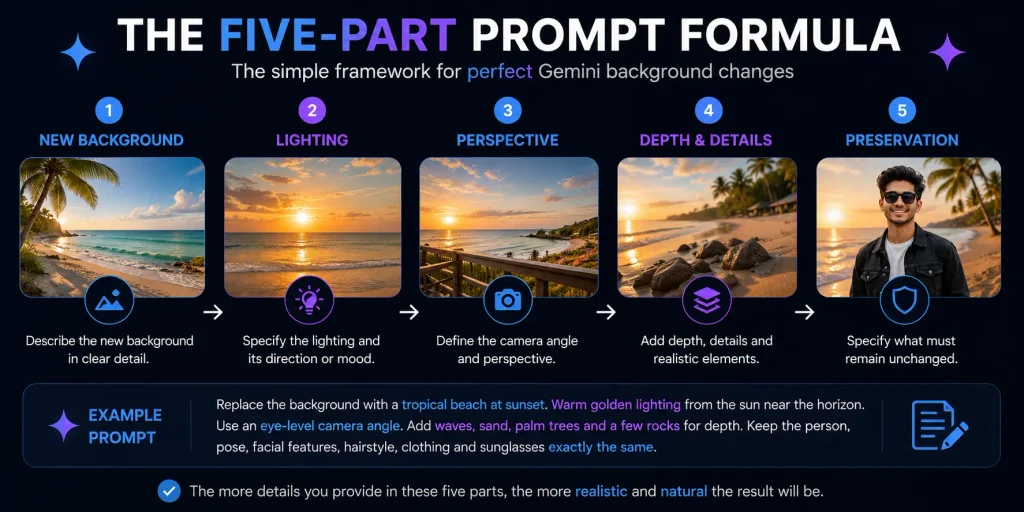
Before using the prompts below, remember this simple structure:
New Background + Lighting + Perspective + Depth + Subject Preservation
You do not always need every element. But when the edit matters, this framework can make the instruction much more precise.
1. New background
Describe where you want the subject to appear.
For example:
- Modern office
- Tropical beach
- Luxury hotel lobby
- Mountain landscape
- Photography studio
2. Lighting
Explain how the new scene should interact with the person or object.
Examples:
- Soft natural daylight
- Warm golden-hour sunlight
- Controlled studio lighting
- Overcast daylight
- Low-light city illumination
3. Perspective
Ask the new environment to match the original image.
For example:
Match the camera angle and perspective of the original photograph.
4. Depth
This helps prevent the background from competing with the subject.
For example:
Create realistic depth of field with the background slightly blurred behind the subject.
5. Subject preservation
This is particularly important for portraits.
For example:
Keep the person’s face, identity, hairstyle, clothing and pose unchanged.
That last instruction is often what separates a controlled edit from a complete visual reinterpretation.
30 Gemini AI Photo Background Change Prompts
1. Professional office background prompt
This prompt works well for profile photos, business websites and professional social media images.
2. Studio background prompt
A studio background is often useful when you want a polished look without creating a dramatic environment.
3. Plain white background prompt
This can be useful for professional headshots and simple product-style images.
4. Luxury office background prompt
5. Coffee shop background prompt
6. Tropical beach background prompt
7. Mountain background prompt
8. Forest background prompt
9. City skyline background prompt
10. Paris-style street background prompt
For location-based creative prompts, it is usually better to describe the visual atmosphere you want rather than relying only on a famous place name.
11. Golden-hour outdoor background prompt
12. Rainy city background prompt
13. Night city background prompt
14. Luxury hotel lobby background prompt
15. Library background prompt
16. Home office background prompt
17. College campus background prompt
18. Wedding venue background prompt
19. Festival background prompt
This works better than simply asking for a “festive background” because it gives Gemini visual information to work with.
20. Cinematic background prompt
21. Minimalist background prompt
22. Abstract creative background prompt
This is useful when you want a creative social media image but do not want the person themselves transformed into an illustration.
23. Product photography background prompt
This is important for businesses. AI editing can make a product photograph look more polished, but the generated image should not misrepresent the actual product.
24. E-commerce white background prompt
25. Restaurant background prompt
26. Nature garden background prompt
27. Snowy mountain background prompt
28. Futuristic city background prompt
29. Social media portrait background prompt
30. Universal Gemini background change prompt
If you want a flexible template, use this:
You can reuse this structure for almost any background.
How to change a photo background in Gemini
The exact interface may change as Google updates Gemini, but the general workflow is straightforward.
Google’s current help documentation says users can upload an image to Gemini Apps and ask Gemini to edit it. On supported versions of the service, users can select or upload an image, open the image chat workflow and enter an editing prompt.
A practical workflow looks like this:
Step 1: Upload your photo
Choose an image with a clearly visible subject.
Clean source images generally give the AI more visual information to work with.
Step 2: Describe the new background
Do not stop at:
Change the background.
Tell Gemini where the subject should appear.
Step 3: Describe the lighting
Mention whether the new scene should have:
- Natural daylight
- Golden-hour light
- Studio lighting
- Night illumination
- Warm indoor lighting
Step 4: Protect the subject
If you are editing a person, explicitly state what should remain unchanged.
For example:
Keep the person’s facial features, hairstyle, clothing and pose unchanged.
Step 5: Refine with follow-up instructions
You do not have to get everything right in one prompt.
Google’s own Gemini image guidance recommends iterating and adding details progressively when you want greater control over the final result.
You can say:
Keep everything else the same, but make the background slightly less blurred.
Or:
The new background is good. Adjust the lighting on the subject to match the warm sunset light.
That conversational editing process is often more practical than rewriting the entire prompt.
Why some AI background changes look fake
The most common reason is visual inconsistency.
Imagine a person photographed indoors under cool white lighting. Now imagine placing that exact person into a tropical sunset scene.
If the AI changes only the background, the person may still look illuminated by indoor lights.
The human eye notices that quickly, even if it cannot explain exactly why.
Three details usually matter:
Lighting direction
Where is the light coming from?
If sunlight is entering from the left side of the background, the subject should not appear strongly illuminated from the right.
Colour temperature
Warm environments often create warmer highlights.
Cool, cloudy scenes produce different colour conditions.
Depth of field
A smartphone-style portrait may have a blurred background. A new environment that is perfectly sharp can create an unnatural separation between the subject and scene.
This is why the best Gemini AI photo background change prompts describe not just the destination but also the visual relationship between the subject and the new environment.
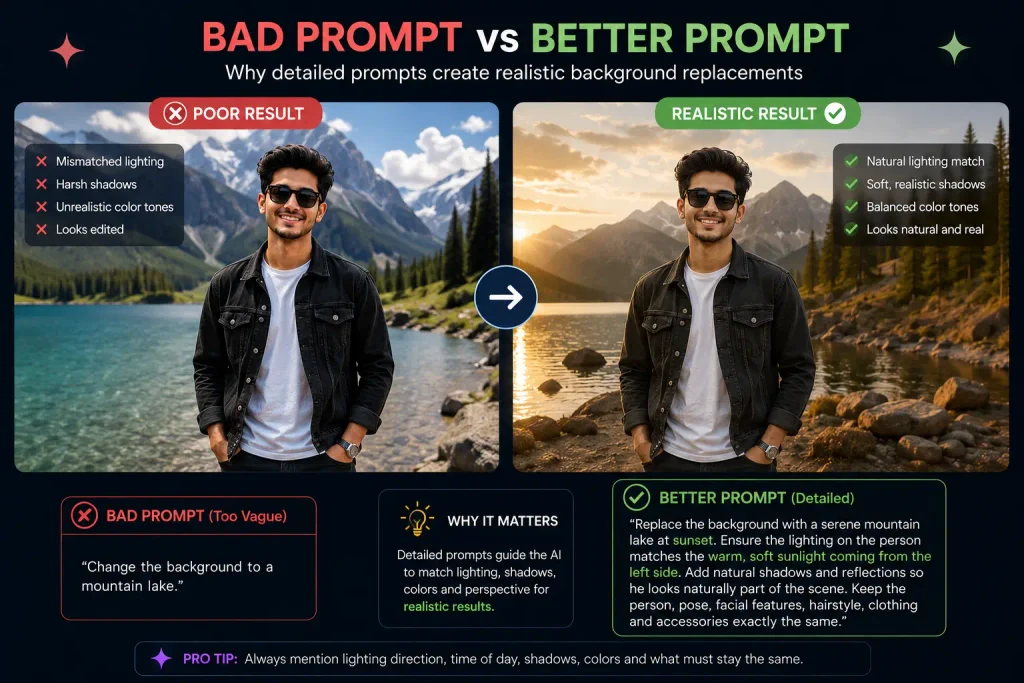
Bad prompt vs better prompt
Bad prompt
Put me in an office.
Better prompt
Replace the existing background with a modern professional office featuring natural window light and subtle depth of field. Match the lighting direction and shadows to the subject. Keep my face, hairstyle, clothing and pose unchanged.
Bad prompt
Change background to beach.
Better prompt
Replace the background with a realistic tropical beach during golden hour. Add warm sunlight and natural shadows that match the original subject. Keep my face, body proportions, clothing and pose unchanged.
Bad prompt
Make background professional.
Better prompt
Replace the existing background with a clean modern office suitable for a professional profile photograph. Use soft natural lighting and a slightly blurred background. Preserve the person’s identity and natural appearance.
The difference is not about using more words for the sake of it.
It is about removing important ambiguity.
Common mistakes to avoid
Changing too much at once
A request like:
Change the background, change my clothes, change my hairstyle, improve my face and make it cinematic.
asks the AI to reinterpret several important elements simultaneously.
For more controlled results, background replacement should often be handled first. Additional edits can then be requested separately.
Forgetting to preserve identity
If you are editing a portrait, tell Gemini what should remain consistent.
Useful phrases include:
- Keep facial features unchanged
- Preserve the person’s identity
- Keep the hairstyle unchanged
- Maintain the original pose
- Do not change clothing
These instructions are not magic guarantees, but they clearly communicate your editing priorities.
Using only subjective words
Words such as beautiful, amazing and premium can mean different things.
Instead of:
Create a beautiful background.
Try:
Create a peaceful luxury hotel lobby with warm lighting, elegant furniture and soft depth of field.
The second version gives the AI something visual to interpret.
Ignoring perspective
A subject photographed from a low camera angle can look strange when placed in a background photographed from far above.
If perspective matters, say:
Match the camera angle and perspective of the original image.
Expecting one prompt to solve every detail
AI editing can be iterative.
If the first image is almost correct, continue from that version instead of starting again.
For example:
Keep the current result, but reduce the brightness of the background and make the shadows around the subject slightly softer.
Small follow-up instructions can be more effective than one extremely long prompt.
A practical framework: Make the background believable
When changing a photo background, think beyond the location itself.
Ask five questions:
Where is the subject now?
What is the lighting like there?
From which angle is the scene viewed?
How sharp should the background be?
What must remain unchanged?
If your prompt answers those questions, you have already given Gemini a much stronger editing brief than simply naming a destination.
Google’s prompt guidance similarly highlights the importance of defining the subject, setting, style and composition, while its editing guidance encourages continued refinement of generated images.
Frequently Asked Questions
What is the best Gemini AI photo background change prompt?
The best prompt clearly describes the new environment and explains how the subject should fit into it. A strong instruction usually includes the new background, lighting, perspective, depth of field and details that should remain unchanged, such as the person’s face, clothing or pose.
How do I change a photo background using Gemini AI?
Upload the image to Gemini Apps and ask Gemini to edit it using a written prompt. Describe the background you want and add instructions about lighting and subject preservation. Google’s current documentation confirms that users can upload images and request edits in supported Gemini workflows.
Can Gemini AI change the background without changing the face?
You can ask Gemini to preserve facial features and identity while changing only the background. For example, include: “Keep the person’s face, identity, hairstyle and expression unchanged.” Results can still vary, so reviewing and refining the generated image is important.
Why does my Gemini AI background replacement look fake?
The most common reasons are mismatched lighting, incorrect shadows, inconsistent perspective or unrealistic depth of field. A better prompt should tell Gemini to match these elements between the original subject and the new environment.
Can I use Gemini to create a professional background?
Yes. You can request backgrounds such as offices, studios, libraries, hotel interiors or clean neutral environments. For realistic results, describe the lighting, depth and overall visual style rather than simply asking for a “professional background.”
What prompt should I use to change my background to a beach?
Try:
Replace the background with a realistic tropical beach with soft sand, blue water and warm natural sunlight. Match the lighting direction and shadows to the subject. Keep my face, clothing and pose unchanged.
Can Gemini AI remove the existing background completely?
You can ask Gemini to replace an existing background with a plain colour, studio environment or another setting. If clean edges are important, mention that the subject should remain clearly separated and naturally integrated into the new background.
Are Gemini image editing features available to everyone?
Feature availability can vary depending on account type, location, age and the specific Gemini product experience. Google’s current documentation also notes age restrictions for image editing, including that editing is not available to users under 18.