Photo editing used to mean learning sliders, masks, layers and adjustment tools. Gemini changes part of that experience by allowing users to describe the edit they want in ordinary language.
Upload a photograph and tell the AI what to change.
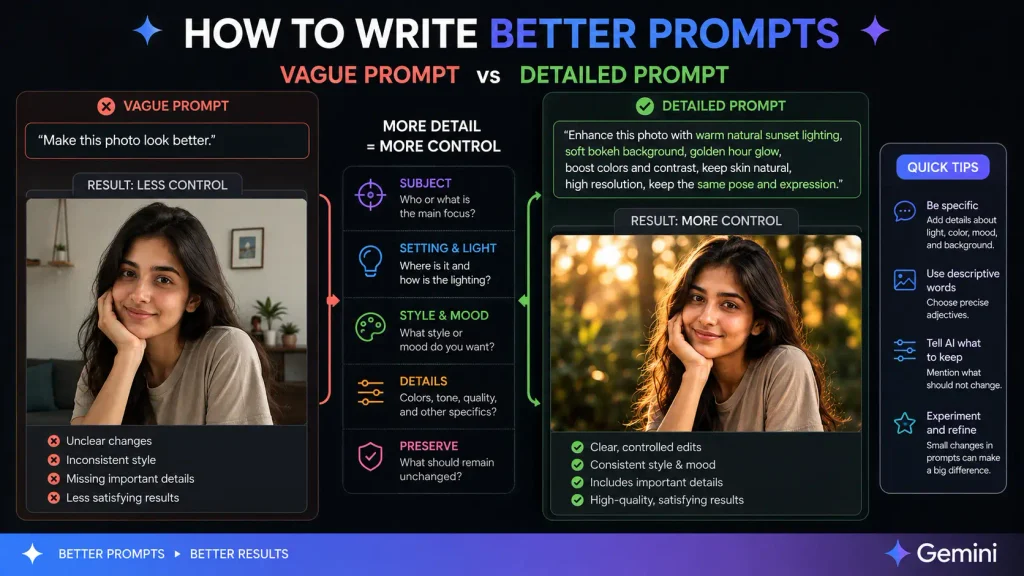
That sounds simple, and it is. But there is a difference between typing “make this photo better” and giving Gemini a useful instruction.
The first leaves almost everything to interpretation. The second gives the AI a clear editing objective.
For example:
Vague prompt:
Make this photo look professional.
Better prompt:
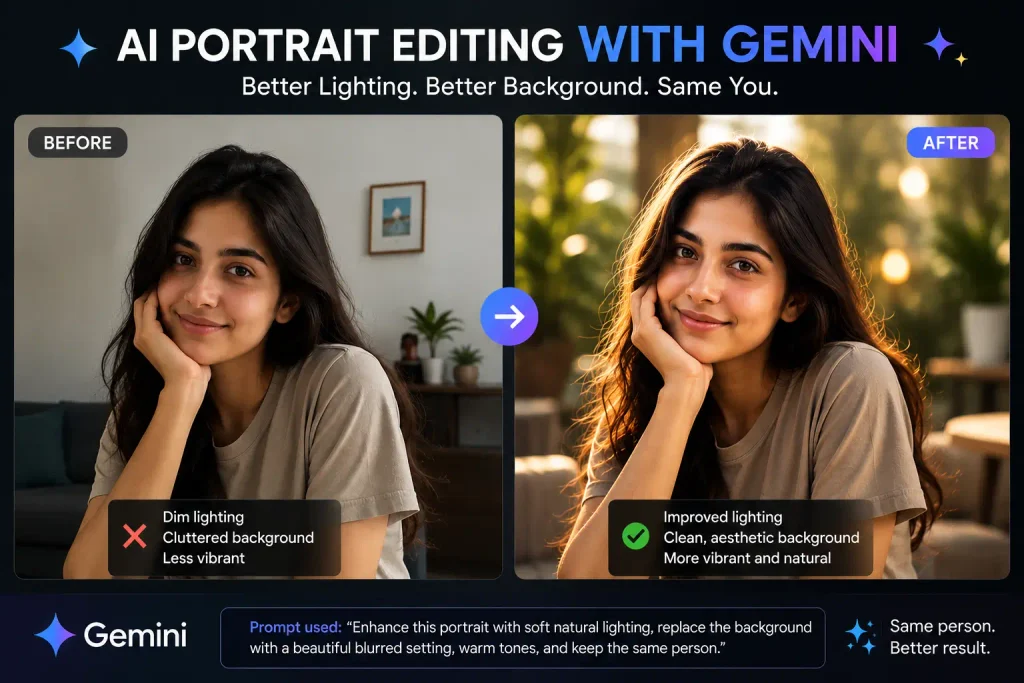
Improve the lighting and overall clarity of this portrait while keeping the person’s face, skin tone, hairstyle and clothing unchanged. Reduce distracting background elements and create a natural professional photography look.
The second prompt does something important: it defines the desired change while protecting the parts of the image that should remain intact.
That principle can improve almost every Gemini AI photo editing prompt you use.
Google’s Gemini Apps currently allow users to upload images and request edits, while Google’s image prompting guidance recommends describing visual details such as the subject, setting, style and composition.
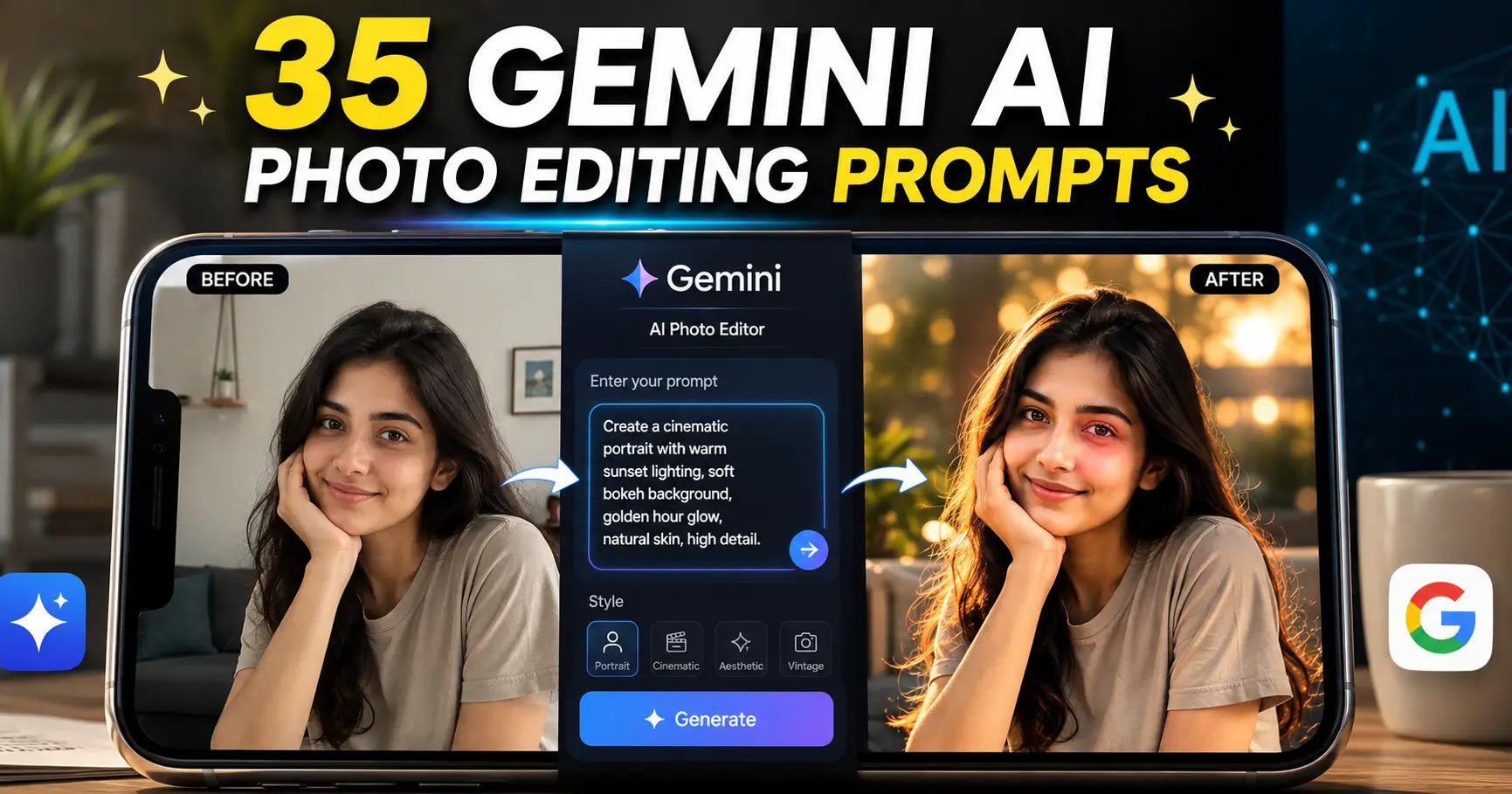
Upload any photo and use one prompt at a time to transform it into a viral aesthetic image.
Click the button below any prompt to copy it instantly.
1. 📱 iPhone Blurry Filter
Transform this photo into a trendy viral iPhone camera aesthetic. Preserve the person’s exact face, identity, pose, clothing, and composition. Add subtle natural motion blur, slightly soft focus, imperfect handheld camera feel, realistic iPhone low-light processing, gentle digital noise, soft highlights, slightly overexposed light sources, natural skin texture, casual candid photography vibe, Instagram dump aesthetic, authentic smartphone photography, imperfect but beautiful, highly realistic.
2. 🎬 Cinematic Filter
Transform this photo into a premium cinematic photograph while preserving the exact face, identity, pose, clothing, and composition. Add dramatic cinematic lighting, soft directional shadows, rich contrast, realistic depth, subtle film grain, atmospheric tones, controlled highlights, deep blacks, natural skin texture, shallow depth of field, cinematic color grading, professional movie still aesthetic, emotional storytelling mood, ultra-realistic photography.
3. 🖤 Dark Aesthetic Filter
Transform this photo into a dark luxury aesthetic while preserving the person’s exact identity, face, pose, clothing, and composition. Create deep shadows, rich blacks, muted colors, subtle contrast, moody lighting, dark atmospheric background, slightly desaturated tones, soft highlights on the face, cinematic darkness, mysterious editorial vibe, premium Instagram aesthetic, subtle film grain, realistic skin texture, ultra-detailed photography.
4. 🌃 CCD Night Shot Filter
Transform this photo into an authentic early-2000s CCD camera night photograph. Preserve the exact face, identity, pose, clothing, and composition. Add direct on-camera flash, dark nighttime environment, slightly overexposed subject, harsh flash highlights, deep black background, realistic CCD sensor noise, colorful digital artifacts, slight motion blur, imperfect exposure, nostalgic party photography aesthetic, authentic old digital camera look, candid viral photo vibe.
5. 📼 2000s Filter
Transform this photo into an iconic early-2000s nostalgic photograph. Preserve the exact face, identity, pose, clothing, and composition. Add Y2K digital camera aesthetics, direct flash photography, slightly washed-out colors, soft glow, CCD sensor noise, subtle chromatic aberration, timestamp-camera feeling, imperfect exposure, nostalgic warm tones, glossy highlights, vintage MySpace and Tumblr aesthetic, authentic 2000s point-and-shoot camera photography.
6. 🔴 Red Light Filter
Transform this photo into a dramatic red-light cinematic portrait. Preserve the person’s exact face, identity, pose, clothing, and composition. Illuminate the scene primarily with deep crimson red lighting, intense red glow across the face and environment, dramatic shadows, dark background, high contrast, mysterious nightclub atmosphere, subtle haze, cinematic grain, glossy highlights, bold editorial photography, dark luxury aesthetic, ultra-realistic skin texture.
7. ✨ Particle Filter
Transform this photo into a dreamy cinematic image while preserving the exact face, identity, pose, clothing, and composition. Add realistic floating particles, tiny glowing dust particles, atmospheric haze, soft light rays, subtle bokeh particles in foreground and background, cinematic depth, gentle motion in the particles, moody lighting, realistic shadows, dreamy storytelling atmosphere, premium editorial photography, highly realistic and natural.
8. 🌑 Moody Filter
Transform this photo into a deeply moody cinematic photograph. Preserve the exact face, identity, pose, clothing, and composition. Add soft low-key lighting, dramatic shadows, muted colors, cool atmospheric tones, deep blacks, subtle foggy atmosphere, controlled highlights, emotional expression emphasis, soft film grain, cinematic depth, mysterious storytelling mood, luxury editorial photography, realistic skin texture, dark Instagram aesthetic.
9. 🌡️ Thermal Cam Filter
Transform this photo into a realistic thermal imaging camera photograph. Preserve the exact face, identity, pose, body shape, clothing silhouette, and composition. Apply authentic infrared thermal camera visualization with realistic heat-map colors, bright yellow and white hottest areas, red and orange medium temperatures, purple and dark blue cold areas, glowing thermal contours, scientific infrared sensor texture, slight digital noise, surveillance camera realism, highly detailed thermal imaging effect.
10. 📸 CCD Cam Filter
Transform this photo into an authentic vintage CCD digital camera photograph. Preserve the exact face, identity, pose, clothing, and composition. Add early digital camera characteristics, direct built-in flash, slightly harsh highlights, realistic CCD sensor noise, mild oversaturation, subtle color shifts, soft digital sharpness, chromatic aberration, imperfect exposure, slight motion blur, nostalgic point-and-shoot camera aesthetic, candid photography feeling, authentic 2000s digital photo texture.
🔥 Universal Line You Can Add to Any Prompt
Keep the original person’s face and identity 100% recognizable. Do not change facial features, hairstyle, body proportions, clothing, pose, or camera angle. Only apply the requested visual filter and photographic aesthetic.
How to write better Google Gemini AI photo editing prompts
Before jumping into the prompt examples, it helps to understand why some requests work better than others.
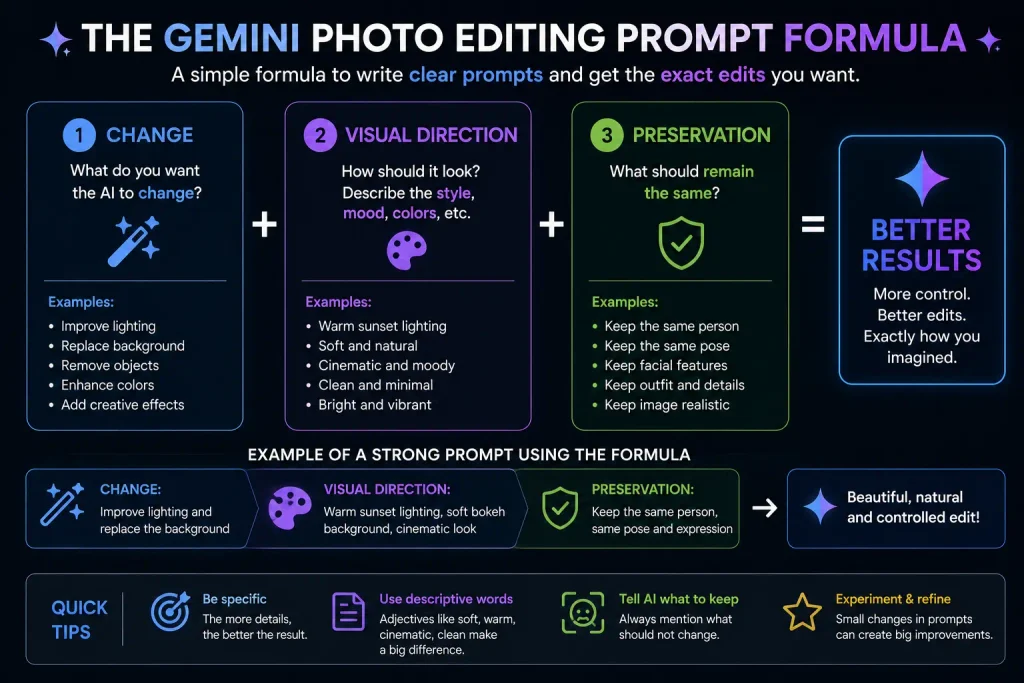
A useful photo editing prompt usually contains four parts:
The original subject: What is already in the image?
The requested change: What should Gemini modify?
The visual direction: How should the final image look?
The preservation instruction: What should not change?
You do not need to include every element every time. But for more complex edits, this structure gives Gemini fewer gaps to fill.
A simple formula looks like this:
Edit this image by [specific change]. Create a [desired style or result]. Keep [important elements] unchanged.
For example:
Edit this image by replacing the background with a modern coffee shop interior. Use soft natural window light and realistic depth of field. Keep the person’s facial features, hairstyle, clothing and pose unchanged.
That is usually more useful than simply writing:
Put me in a coffee shop.
The difference may seem small. It isn’t.
The first prompt gives Gemini boundaries.
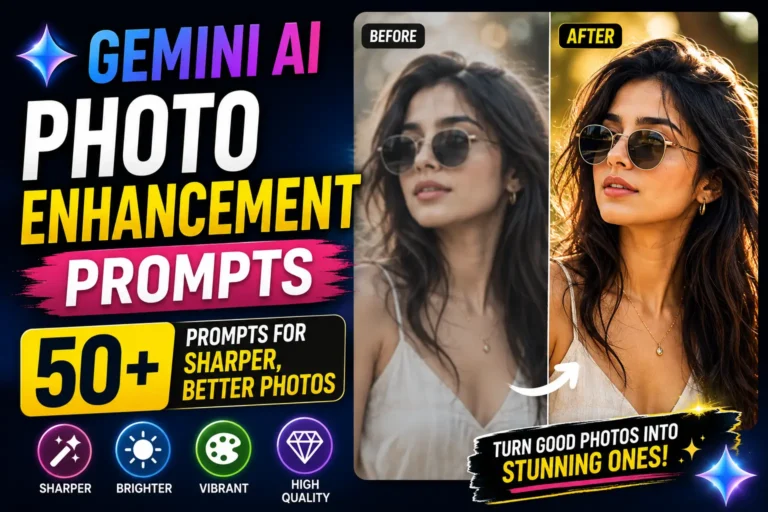
35 Best AI Photo Editing Prompts
Upload your photo and use any of these copy-paste prompts to improve, transform, restore or creatively edit your images with AI.
Click the button below each prompt to copy it instantly.
1. Prompt to Improve Overall Photo Quality
Enhance this photo naturally. Improve sharpness, exposure, colour balance and overall clarity without making the image look over-edited. Preserve the original composition, facial features and realistic skin texture.
2. Prompt to Improve Portrait Lighting
Improve the lighting in this portrait to create soft, flattering natural light. Balance the shadows, brighten the face slightly and add gentle depth. Keep the person’s identity, skin tone and facial features unchanged.
3. Prompt for a Professional LinkedIn-Style Photo
Transform this into a clean, professional headshot suitable for a business profile. Use soft studio lighting, a simple neutral background and natural colours. Keep the person’s face, hairstyle, expression and identity consistent with the original photo.
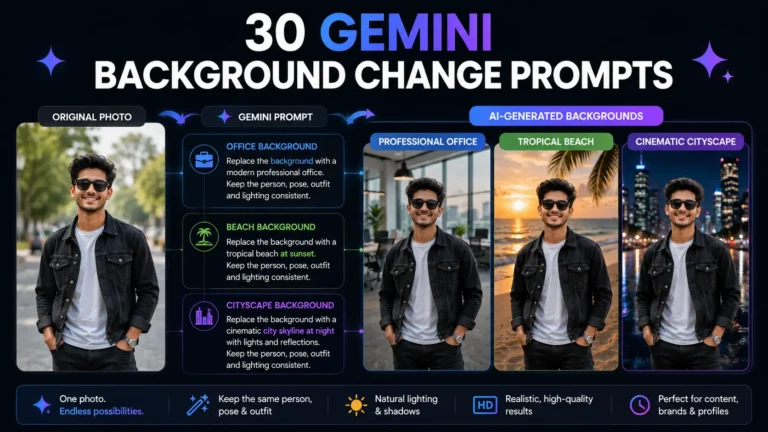
4. Prompt to Change the Background
Remove the existing background and replace it with a realistic modern office interior. Match the lighting direction and shadows so the subject naturally fits into the environment. Keep the person’s pose, clothing and appearance unchanged.
5. Prompt to Remove Unwanted People
Remove the people in the background while keeping the main subject exactly as it is. Reconstruct the background naturally so there are no obvious gaps, duplicated objects or artificial-looking areas.
6. Prompt to Remove a Distracting Object
Remove the distracting object from the image and naturally reconstruct the area behind it. Do not change the main subject, camera angle, lighting or overall composition.
7. Prompt for Cinematic Photo Editing
Transform this photograph into a cinematic still with dramatic but realistic lighting, deeper shadows, rich colour grading and a wide-screen visual feel. Preserve the identity and pose of the main subject. Keep the result photorealistic rather than overly stylised.
8. Prompt for a Golden-Hour Effect
Recreate this photo as if it were taken during golden hour. Add warm sunlight, soft highlights and realistic long shadows while preserving the original subject and composition.
9. Prompt for a Rainy-Day Transformation
Transform the environment into a realistic rainy-day scene. Add wet surfaces, soft reflections and an overcast atmosphere while keeping the main subject unchanged. Make the lighting consistent with natural cloudy weather.
10. Prompt for a Night-Time Version
Convert this daytime photo into a realistic night-time scene. Add natural low-light conditions, subtle street or ambient lighting and realistic shadows. Keep the main subject and composition unchanged.
11. Prompt to Restore an Old Photograph
Restore this old photograph carefully. Remove visible scratches, dust and minor damage, improve clarity and balance the tones. Preserve the original facial features, expressions, clothing and historical character of the image. Do not modernise the people or change the original composition.
12. Prompt to Colourise an Old Black-and-White Photo
Colourise this black-and-white photograph with realistic, historically appropriate colours. Preserve the original details and facial features. Avoid overly saturated colours and keep the final result natural.
13. Prompt to Sharpen a Slightly Blurry Image
Improve the clarity of this image by reducing mild blur and enhancing important details. Keep the result realistic and avoid creating artificial facial features, excessive sharpening or unnatural textures.
14. Prompt for Natural Skin Retouching
Retouch this portrait subtly. Reduce temporary blemishes and uneven lighting while preserving natural skin texture, pores, facial features and skin tone. Avoid excessive smoothing or a plastic-looking appearance.
15. Prompt for Social Media Profile Pictures
Optimise this portrait for a social media profile picture. Create a clean background, improve facial lighting and ensure the subject remains clearly visible when the image is cropped into a square. Preserve the person’s natural appearance.
16. Prompt for Instagram-Style Editing
Give this photo a polished, modern editorial look suitable for Instagram. Improve colours, lighting and contrast while keeping the image realistic. Avoid excessive filters, unrealistic skin tones or oversaturated colours.
17. Prompt for a Travel Photograph
Enhance this travel photograph while preserving the authenticity of the location. Improve natural colours, sky detail, lighting and overall depth without adding landmarks, objects or scenery that were not part of the original scene.
18. Prompt for a Luxury Travel Look
Edit this travel photo with a premium editorial photography aesthetic. Use refined colour grading, balanced contrast, natural depth and elegant lighting while keeping the location and subject recognisable and realistic.
19. Prompt for Food Photography
Enhance this food photograph to make the dish look fresh, appetising and naturally detailed. Improve lighting, colour and texture while keeping the food realistic and avoiding artificial changes to the ingredients.
20. Prompt for Product Photography
Transform this into a clean commercial product photograph. Place the product against a simple premium background with soft studio lighting and realistic shadows. Keep the product’s shape, colour, branding and design details unchanged.
21. Prompt for an E-Commerce Product Image
Create a clean e-commerce product image from this photo. Use a plain light background, even lighting and clear product visibility. Preserve the exact product design, colour, proportions and important details.
22. Prompt for a Fashion Editorial Look
Edit this fashion photograph with a high-end editorial style. Improve lighting, composition and colour grading while preserving the model’s identity and the accurate appearance of the clothing.
23. Prompt to Create a Studio Portrait
Transform this into a realistic studio portrait with soft diffused lighting, subtle shadows and a clean background. Keep the person’s facial features, hairstyle, expression and clothing unchanged.
24. Prompt for a Vintage Film Look
Give this photograph a subtle vintage film aesthetic with natural grain, slightly muted colours and gentle contrast. Preserve the original composition and avoid making the image look artificially aged or damaged.
25. Prompt for a Black-and-White Portrait
Convert this portrait into a timeless black-and-white photograph with balanced contrast, detailed shadows and natural skin texture. Keep the facial features and expression unchanged.
26. Prompt for a Dramatic Magazine Cover Style
Reframe this image with a polished editorial photography style inspired by a high-quality magazine portrait. Use controlled dramatic lighting, refined colour grading and strong composition. Keep the subject realistic and recognisable.
27. Prompt to Change Clothing
Change the person’s clothing to a formal navy-blue business suit while preserving the person’s face, body proportions, hairstyle, pose and identity. Make the clothing fit naturally with realistic fabric texture and lighting.
28. Prompt to Add an Accessory
Add a realistic pair of sunglasses to the person in this photo. Match the angle, lighting and reflections to the existing image. Do not change the person’s facial features, hairstyle or expression.
29. Prompt to Create a Fantasy Scene
Transform the background into a detailed fantasy landscape with ancient architecture, mist and dramatic skies. Keep the main subject recognisable and naturally integrated into the new environment. Match the lighting and perspective across the entire image.
30. Prompt for a Futuristic Transformation
Reimagine this photo in a realistic futuristic city environment with modern architecture, subtle neon lighting and advanced technology. Preserve the main subject’s identity and natural proportions.
31. Prompt for a Minimalist Aesthetic
Simplify the visual environment around the main subject. Remove unnecessary distractions and create a clean, minimalist composition while preserving the subject and the natural realism of the photograph.
32. Prompt to Combine Two Images
Use the person from the first uploaded image and place them naturally in the environment shown in the second image. Match the perspective, lighting, shadows and colour temperature. Keep the person’s identity and appearance consistent with the first image.
33. Prompt for a Family Photo Enhancement
Improve this family photograph by enhancing lighting, clarity and colour balance. Keep every person’s facial features, expressions, clothing and body proportions unchanged. Maintain the natural feeling of the original moment.
34. Prompt for a Professional Thumbnail
Edit this image for use as a digital content thumbnail. Make the main subject visually clear and prominent, improve contrast and simplify distracting background areas. Keep the photograph realistic and leave enough clean space for text to be added later.
35. Prompt for a Subtle “Make It Better” Edit
Analyse this photograph and make subtle improvements to lighting, exposure, colour balance and clarity. Preserve the original subject, composition and realistic appearance. Do not add new objects or dramatically change the image unless necessary.
The most important Gemini photo editing rule: tell it what to preserve
A useful way to think about Gemini AI photo editing prompts is that every edit has two sides.
The change tells the AI what you want.
The preservation instruction tells it where to stop.
For example:
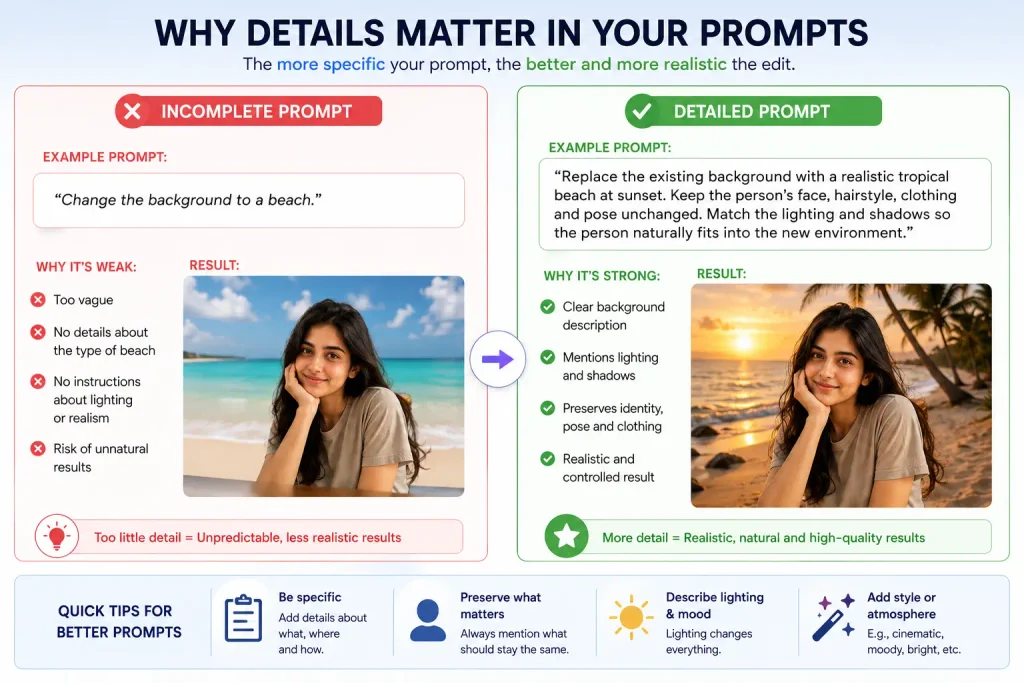
Change the background to a beach.
This is incomplete.
A stronger version would be:
Replace the existing background with a realistic tropical beach at sunset. Keep the person’s face, hairstyle, clothing and pose unchanged. Match the lighting and shadows so the person naturally fits into the new environment.
The second version reduces the chance of the AI treating the entire photograph as a creative starting point.
Google’s own prompting guidance emphasises detailed descriptions of visual elements including subject, setting, action, style and composition, which supports the broader principle that clearer instructions generally give image models a better-defined task.
Common mistakes when writing Gemini AI photo editing prompts
Asking for too many changes at once
A prompt such as:
Make this photo cinematic, change the clothes, add a new background, improve the face, change the weather and make it look like a movie poster.
may work, but it gives the model a large number of changes to interpret simultaneously.
For complex transformations, consider editing in stages.
Start with the background.
Then refine the lighting.
Then make smaller changes.
Using vague words without visual context
Words such as beautiful, amazing and professional are subjective.
Try replacing them with visual descriptions.
Instead of:
Make the background beautiful.
Write:
Replace the background with a softly blurred garden containing green foliage and warm evening sunlight.
Specific instructions are easier to interpret.
Forgetting to protect identity
If you are editing a portrait, say what should remain consistent.
For example:
Keep the person’s facial features, skin tone and identity unchanged.
This does not guarantee perfect preservation, but it makes your intention clearer.
Expecting AI to understand what you did not describe
If a particular object, colour, pose or composition matters, mention it.
AI image editing works best when important details are not left entirely to assumption.
Can Google Gemini edit photos?
Yes. Gemini Apps support image generation and image editing, including uploading an existing image and asking Gemini to modify it. Google’s help documentation also describes workflows for editing images generated within Gemini and combining multiple uploaded images. Feature availability can depend on the user’s account, age, location and supported Gemini services.
How to edit a photo with Google Gemini
The exact interface can change, but Google’s current guidance broadly involves uploading or selecting an image, opening the image chat or editing workflow, entering an editing instruction and submitting the prompt.
The practical process is simple:
Open Gemini.
Upload the photograph you want to edit.
Describe the change you want.
Mention important details that should remain unchanged.
Review the result.
Use a follow-up prompt to refine specific parts.
The last step is important.
You do not need to write the perfect prompt on the first attempt.
Image editing can be conversational. If the first version is close but not quite right, refine it.
For example:
The lighting looks good. Keep everything else the same, but make the background slightly less blurred and reduce the warm colour tone.
That is often easier than starting from scratch.
Final takeaway: better prompts are about control, not complexity
The appeal of Google Gemini AI photo editing is obvious: you can describe an edit instead of learning every traditional editing tool.
But text-based editing still benefits from clear thinking.
The best prompts are not necessarily the longest or most complicated. They simply make the desired result easier to understand.
A strong request usually answers three questions:
What should change?
How should it look?
What must stay the same?
That final question is the one many users forget.
Once you start adding preservation instructions to your Gemini AI photo editing prompts, you move from asking the AI to “do something creative” to giving it a more controlled editing brief. For portraits, products, travel photos and personal memories, that difference can matter more than adding another dramatic adjective to the prompt.
Frequently Asked Questions
The best prompts are specific about the requested change and clear
about what should remain unchanged. For example, instead of saying
“make my photo professional,” explain the desired lighting,
background and style while asking Gemini to preserve the person’s
identity, facial features and clothing.
Gemini Apps support uploading images and asking the AI to edit them.
Google also documents the ability to edit images generated within
Gemini and, in supported workflows, use multiple uploaded images to
create a new image. Availability can vary by account, location and
other eligibility requirements.
Include a direct preservation instruction in your prompt. For
example: “Keep my facial features, identity, skin tone and expression
unchanged.” You can then specify only the elements you want edited,
such as lighting, background or clothing.
Gemini can be prompted to remove unwanted objects or distracting
elements from an image. A more effective request explains that the
surrounding area should be reconstructed naturally and that the main
subject and overall composition should remain unchanged.
Yes, background replacement is one of the practical uses of
text-based image editing. For better results, describe the new
environment and ask Gemini to match lighting, perspective, shadows
and colour temperature so the subject appears naturally placed.
A good prompt clearly describes the requested edit, visual style and
important preservation requirements. For complex edits, it can also
help to mention composition, lighting, realism and specific elements
that should not be changed.
No. A long prompt can still be vague. The goal is not to write more
words; it is to remove important ambiguity. A short, precise
instruction can work better than a long prompt filled with generic
adjectives.
Not necessarily. Google notes that image-editing features can depend
on factors such as age, supported countries and account type. Its
current help documentation states that image editing is not available
to users under 18. Check Gemini’s current availability and eligibility
information before relying on a particular feature.
Thanks for publishing this clear article. The way you framed “35 Google Gemini AI Photo Editing Prompts for Stunning Photo Transformations – Prompt Doom” gave our team useful context. From the TrendBriefs team side, we care about clear explainers, source checking, and giving readers practical context before they act on fast-moving topics.



Thanks for publishing this clear article. The way you framed “35 Google Gemini AI Photo Editing Prompts for Stunning Photo Transformations – Prompt Doom” gave our team useful context. From the TrendBriefs team side, we care about clear explainers, source checking, and giving readers practical context before they act on fast-moving topics.