Why Chat GPT Sometimes Fails to Generate an Image in 2026 and What Actually Helps
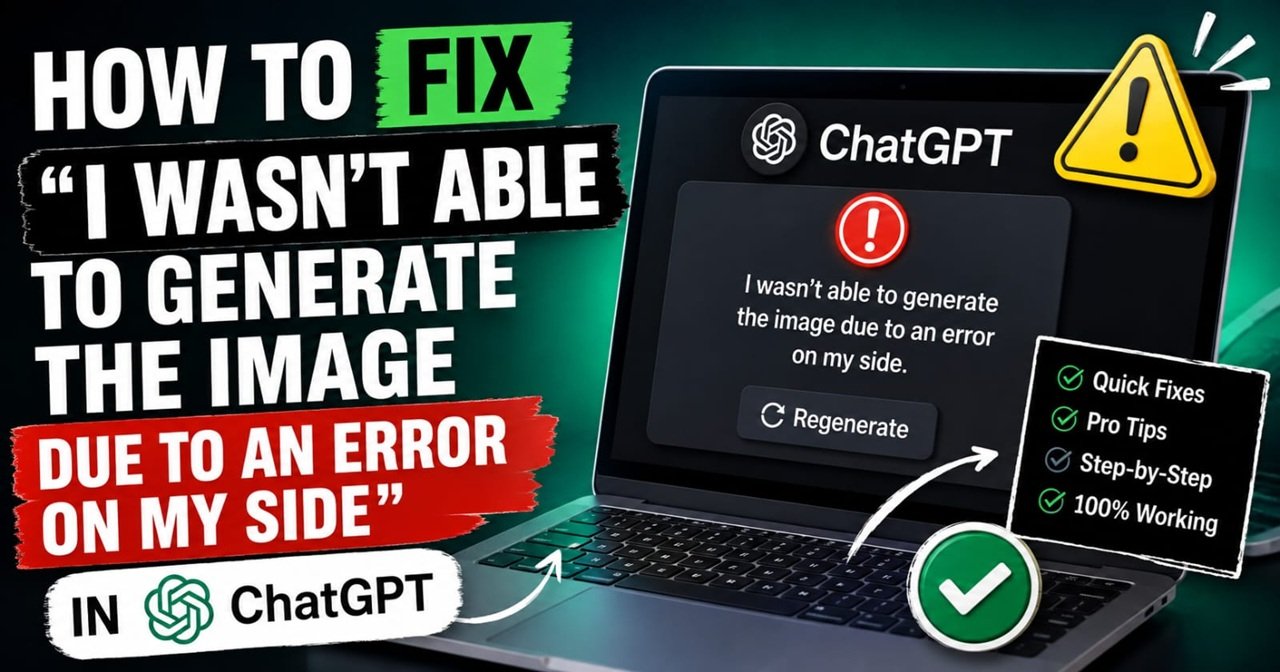
Why Chat GPT Sometimes Fails to Generate an Image: No matter how carefully a prompt is written, there is always a chance that ChatGPT will refuse to turn it into an image. You type the description, press enter, watch the progress bar move, and then get a surprisingly unhelpful message:
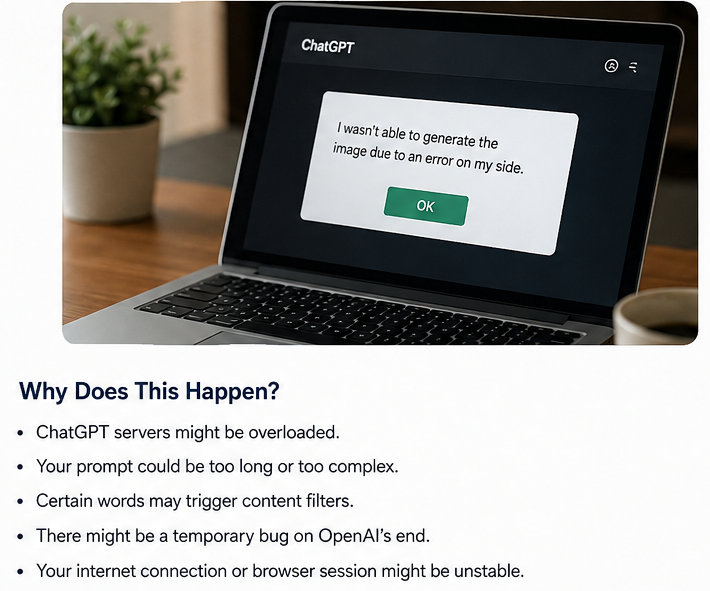
“I wasn’t able to generate the image due to an error on my side.”
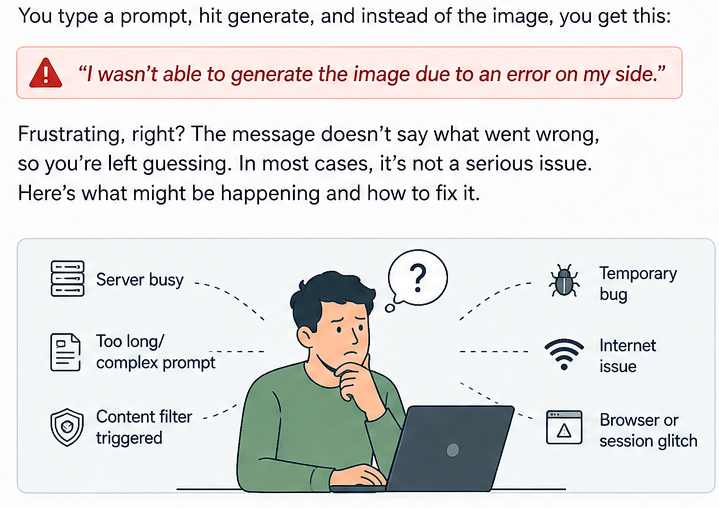
It is frustrating, particularly when the image is needed quickly. The message offers almost no explanation. It does not tell you whether the problem came from the prompt, the internet connection, the browser, the app, or ChatGPT itself. That leaves users doing what they usually do when technology stops explaining itself: guessing.
The good news is that the error is rarely as serious as it sounds. In many cases, it is the result of a temporary technical problem, an overly complicated prompt, or a session that has simply stopped behaving properly. There are several practical fixes, and most take only a few minutes to try.
What Could Be Behind the Error?
There is no single reason why an image request can fail. ChatGPT may be dealing with unusually high demand, meaning a request that normally works can occasionally fail without any change on the user’s side.
The prompt itself can also play a role. A description containing numerous subjects, artistic styles, camera instructions, lighting conditions and other details may become unnecessarily complicated. More detail is not automatically better if the main idea gets buried underneath a long list of instructions.
Then there are the less obvious possibilities. Certain wording can trigger safety restrictions, even when the user did not intend anything problematic. A browser session can become unstable. An internet connection can drop for a few seconds. An outdated application can create compatibility problems.
In other words, the error message tells you that something went wrong, but not necessarily what went wrong.
Start With the Simplest Fix
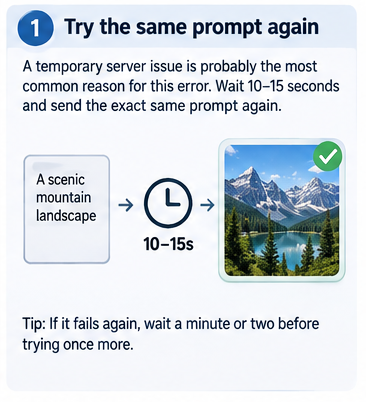
The first solution is almost embarrassingly straightforward: try the prompt again.
A temporary failure does not necessarily mean the request itself is broken. Wait for 10 or 15 seconds and send the same prompt again. If it fails a second time, give it another minute before trying once more.
This matters because image generation depends on a service that is handling requests from many users at the same time. A request can occasionally fail simply because something went wrong during that particular attempt.
There is little value in immediately rewriting everything if the original prompt worked perfectly well before. A second attempt can sometimes produce the image without any changes at all.
When the Prompt Is Doing Too Much
If repeated attempts fail, the next place to look is the prompt.
People often try to get everything right in one description. A single prompt might specify a futuristic city, heavy rain, neon reflections, a particular character, a cinematic camera angle, dramatic lighting, specific clothing, a certain colour palette and several background objects. The result may be detailed, but it is also doing a lot of work at once.
A better approach is to start with the central idea.
For example, instead of immediately describing an entire futuristic scene, begin with something like:
“A futuristic city at night with neon lights and wet streets.”
If that works, build from there. Add the rain. Add the character. Add the lighting. Add the camera angle.
This gradual approach is useful for another reason: it tells you where the problem might be. If the simple version works and a later addition causes the request to fail, you have a much better idea of what needs changing.
Pay Attention to Wording
Not every failed image request is a technical failure. Sometimes the wording itself can cause trouble.
Image-generation systems have safety restrictions, and certain requests or descriptions may fall outside what they are allowed to produce. The difficulty is that language is rarely as precise as we think it is. A word can have one meaning to the person writing the prompt and another meaning when interpreted by an automated system.
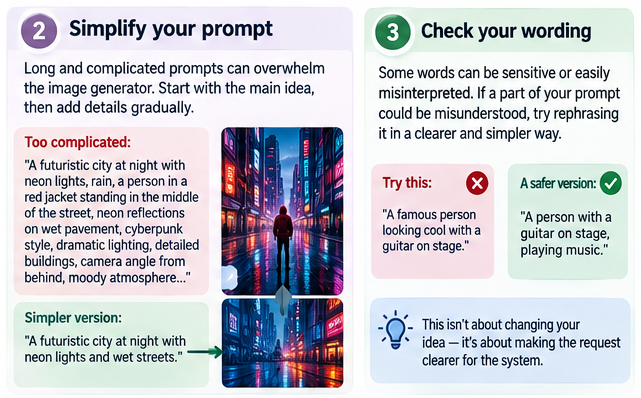
If a prompt contains something that could be understood as involving a real public figure, copyrighted character, graphic violence, sexual material or another restricted category, try rewriting it more clearly.
That does not necessarily mean the original request was inappropriate. It may simply have been ambiguous. A more direct description of what should appear in the image can sometimes avoid unnecessary confusion.
A Stuck Session Can Look Like a Bigger Problem
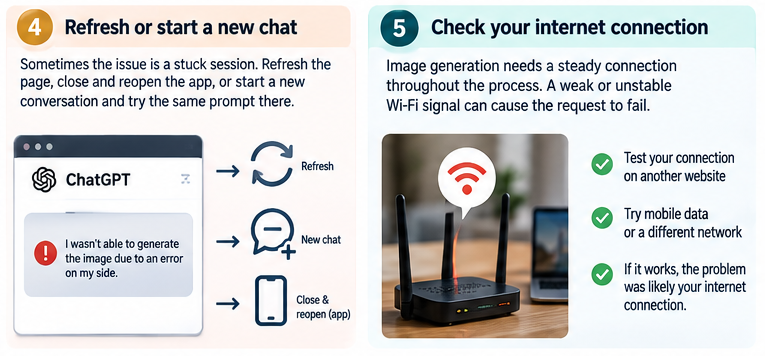
Sometimes the prompt is fine and the service is working, but the particular ChatGPT session has become unreliable.
Refreshing the page is a simple place to start. If you are using the desktop or mobile app, close it completely and reopen it. Another useful test is to start a new conversation and paste the same prompt there.
This can help separate a prompt problem from a session problem. If the request works in a fresh chat, there may have been something unusual about the earlier session rather than the prompt itself.
Logging out and signing back in can also help, although it is better treated as a later step rather than the first thing to try.
- Why Most ChatGPT Cold Emails Get Ignored (And How to Prompt Better Ones)
- Claude’s Record-a-Skill: Faster Research, But Who Checks the Judgment?
- How to Create AI Flyers That Are Plagiarism-Free and Look Human-Made (2026 Guide)
- How to Use AI to Write Product Descriptions That Sell (With a Reusable Framework)
- 10 ChatGPT Prompts for Writing Blog Post Outlines Fast (With a Real Example)
- How to Write a Marketing Persona Prompt for ChatGPT (With Template)
Do Not Ignore the Internet Connection
Internet problems are easy to overlook because normal browsing may still work.
Image generation is a different kind of request. The connection needs to remain stable while the service processes the request and returns the result. A brief interruption can therefore cause a generation attempt to fail.
If your Wi-Fi is unstable, try another connection. If you are on mobile data and the signal is weak, move to a more reliable network. Even a simple connection test can tell you whether the problem is actually coming from ChatGPT or from the network between your device and the service.
Update the App or Change the Browser
Software problems are less dramatic but just as real.
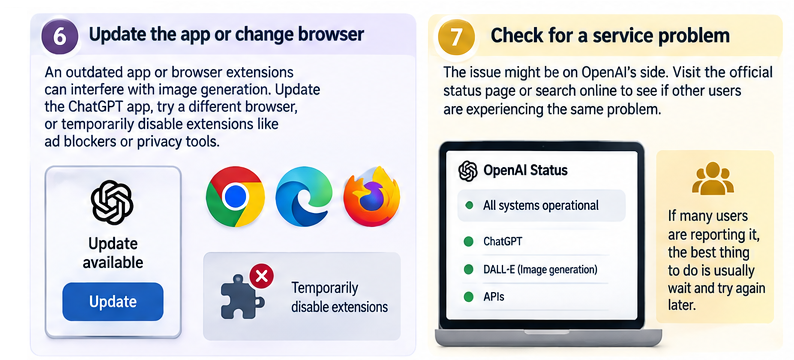
If you are using the ChatGPT app, check whether an update is available. New features are regularly introduced, and an outdated version can sometimes behave differently from the current one.
On a computer, trying another browser is another useful test. Browser extensions can also interfere with websites. Ad blockers, privacy extensions and other tools that modify how pages load may occasionally cause unexpected problems.
You do not need to remove everything permanently. Temporarily disabling an extension and testing the image generator is enough to find out whether it is involved.
Sometimes the Problem Really Is on OpenAI’s Side
There is a tendency to assume that every technical problem must be caused by the user’s device. That is not always true.
ChatGPT can experience service disruptions, and image generation can be affected by those problems. If an image that worked earlier suddenly stops generating, particularly across different prompts, it is worth checking whether there is a wider service issue.
OpenAI’s official status page can show whether there are reported problems. Searching online can also give you a quick sense of whether other users are experiencing the same thing.
If a large number of people are reporting similar failures, changing your prompt repeatedly is unlikely to solve the underlying problem. At that point, waiting is probably the most practical option.
Timing Can Matter
Demand on online services is not constant. There are periods when many more people are using the same features, and image generation may be affected by that demand.
If the image is not urgent, trying again later can be surprisingly effective. Instead of repeatedly submitting the same request every few seconds, leave it for a while and return to it later.
This is particularly useful when everything else appears normal but image generation continues to fail.
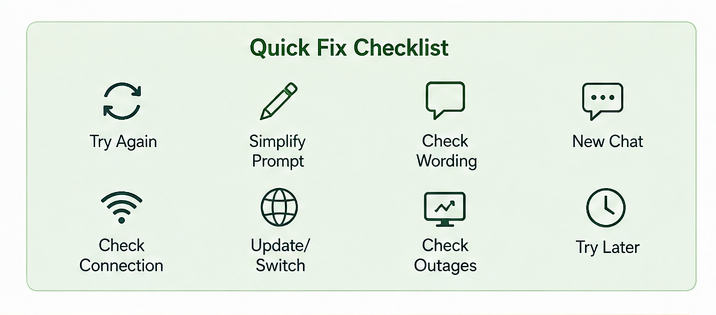
The Practical Order to Follow
When the error appears, there is no need to try everything randomly. A sensible order is:
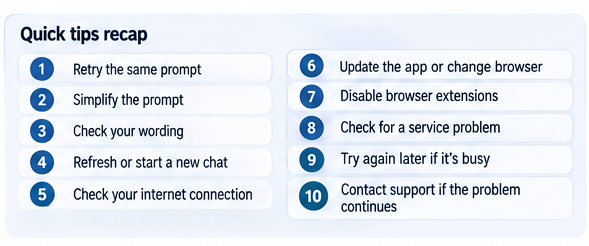
- Try the same prompt again after a short wait.
- Simplify the prompt if it is very detailed.
- Review the wording for anything that could be misunderstood.
- Refresh ChatGPT or open a new conversation.
- Check the internet connection.
- Update the app or try another browser.
- Temporarily disable browser extensions.
- Check for a wider service outage.
- Wait and try again later.
- If the problem continues across different prompts and sessions, contact support.
Conclusion
The message “I wasn’t able to generate the image due to an error on my side” sounds more definitive than it really is. It does not necessarily point to a damaged account or a serious problem with the image tool. Often, the cause is much less dramatic: a temporary service issue, an overly complicated prompt, an unstable connection or a browser session that needs to be restarted.
The useful response is therefore not to assume the worst, but to troubleshoot systematically. Start with another attempt. If that fails, simplify the prompt. Then check the session, connection and browser before moving on to service-status checks.
Most importantly, do not treat every failed generation as evidence that something is fundamentally wrong. Image generation is a complicated process involving the prompt, the application, the network and the service itself. Any one of those pieces can briefly fail.
And when none of the usual fixes work, there is still a straightforward conclusion: sometimes the problem really is on the other side. In that situation, waiting for the service to recover or contacting support is more useful than endlessly rewriting a prompt that was never the real problem in the first place..