
How to Write a Prompt for Excel Formulas (With Real Examples)
Type “write an Excel formula to sum sales by category” into ChatGPT and it will confidently return a formula — one built around guessed column letters and a guessed range that almost certainly don’t match your actual spreadsheet. It’s not that ChatGPT can’t write Excel formulas; it’s that formulas are only correct relative to a specific layout, and a prompt with no layout information forces the model to guess one. The fix isn’t a smarter prompt phrase or a longer list of examples to copy — it’s one specific habit: describing your spreadsheet’s actual columns before asking for anything.
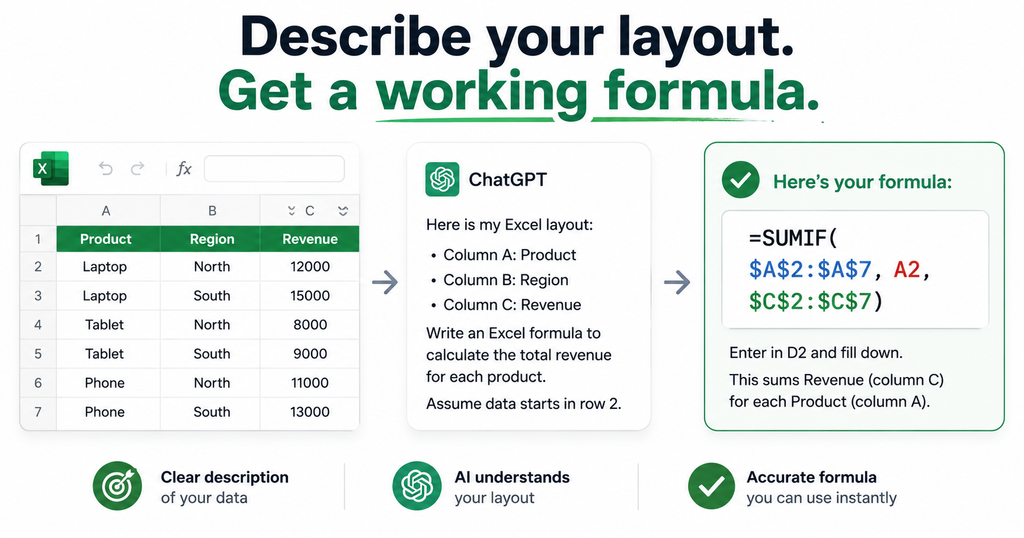
Once that habit is in place, most of the common formula requests — conditional sums, lookups, text cleanup, date calculations, even VBA macros — become straightforward to prompt for correctly on the first try. The examples below build that habit into every prompt, rather than treating it as an optional extra step.
The One Principle Everything Else Depends On
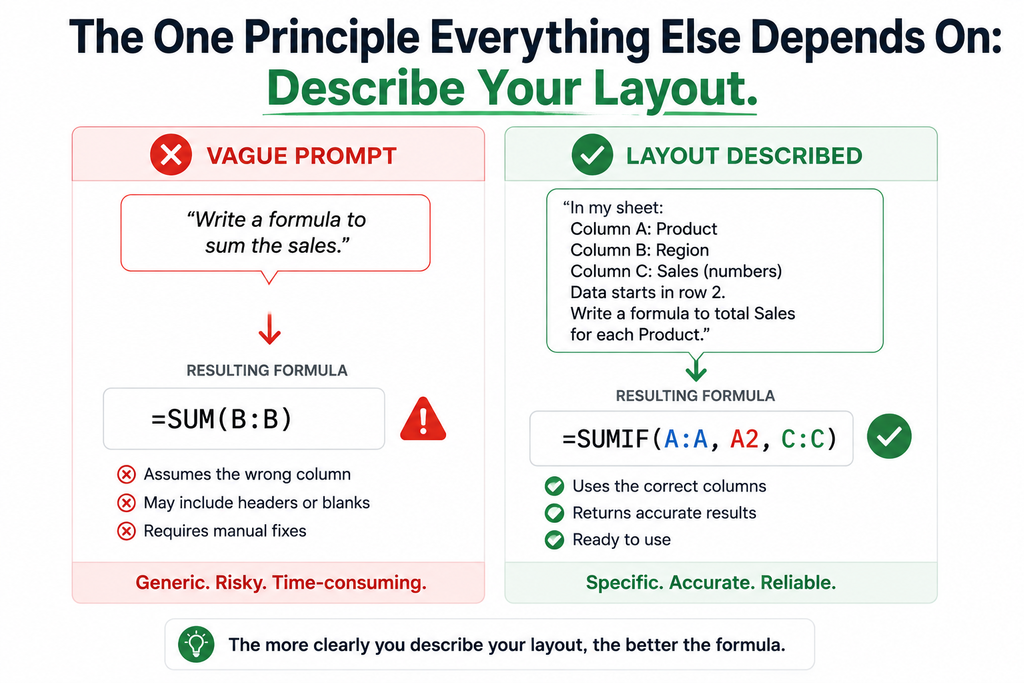
Always describe your data layout before asking for a formula. Instead of “write a formula to sum sales by category,” say something closer to: “I have a spreadsheet where column A has product categories, column B has month names, and column C has revenue figures. I need a formula in column D that sums all values in column C where column A matches a specific category.” The second version gets you a working formula. The first gets you a generic example built on columns that don’t exist in your actual file.
This single change matters more than which AI tool you use, more than how the request is phrased, and more than how many examples you provide — because a formula is fundamentally a set of references to specific cells and ranges, and ChatGPT can’t infer what it hasn’t been told.
A Reusable Prompt Template
Prompt: “I have an Excel spreadsheet with the following layout: [describe columns, e.g., ‘Column A: Date, Column B: Region, Column C: Product, Column D: Revenue’]. I need a formula in [target cell/column] that [describe exactly what the formula should calculate or check]. My data runs from row [X] to row [Y]. [Any constraints: Excel version, how to handle blanks/errors, etc.]”
Filling in every bracket, even briefly, is what separates a formula that works immediately from one that needs three rounds of follow-up corrections.
Prompts for Common Formula Tasks
Conditional sums with multiple criteria. “I have a spreadsheet where column A has dates, column B has region names, column C has product categories, and column E has revenue. Write a formula in cell G1 that totals revenue in column E where the region in column B is ‘West’, the category in column C is ‘Software’, and the date in column A falls between January 1 and March 31, 2026.”
Looking up a value across sheets. “I have a ‘Products’ sheet with product IDs in column A and prices in column B, and an ‘Orders’ sheet with product IDs in column A. Write a formula for column B on the Orders sheet that looks up the matching price from the Products sheet.”
Comparing two lists. “I have List1 in column A (rows 2 to 20) and List2 in column C (rows 2 to 30). Write a formula that shows all values in List1 that don’t appear anywhere in List2.”
Cleaning inconsistent text data. “Column B has customer names with inconsistent capitalization, extra spaces, and a mix of commas and semicolons as separators. Write a formula to standardize every entry to ‘First Last’ format with a single space between words.”
Date-based calculations. “Column A has a date in each row. Write a formula in column B that returns the last Friday of the same month as the date in column A.”
Handling errors gracefully. “Write a formula to calculate the percentage difference between the value in column A and the value in column B, and have it return a blank or a clear message instead of a #DIV/0! error when column B is zero.”
Prompting for VBA Macros
Macro requests benefit from the same layout-first principle, plus a clear statement of the exact sequence of actions involved.
Prompt: “Write a VBA macro that loops through every worksheet in my workbook and does the following: bolds the header row, applies alternating white and light-gray row colors, auto-fits all columns, freezes the top row, and adds a thin border to all cells containing data. Skip any sheet named ‘Summary’.”
Spelling out the exact sequence of steps, in the order they should happen, produces a macro far closer to what’s actually needed than a vague “format all my sheets” request.
The Debugging Prompt: What to Do When a Formula Breaks
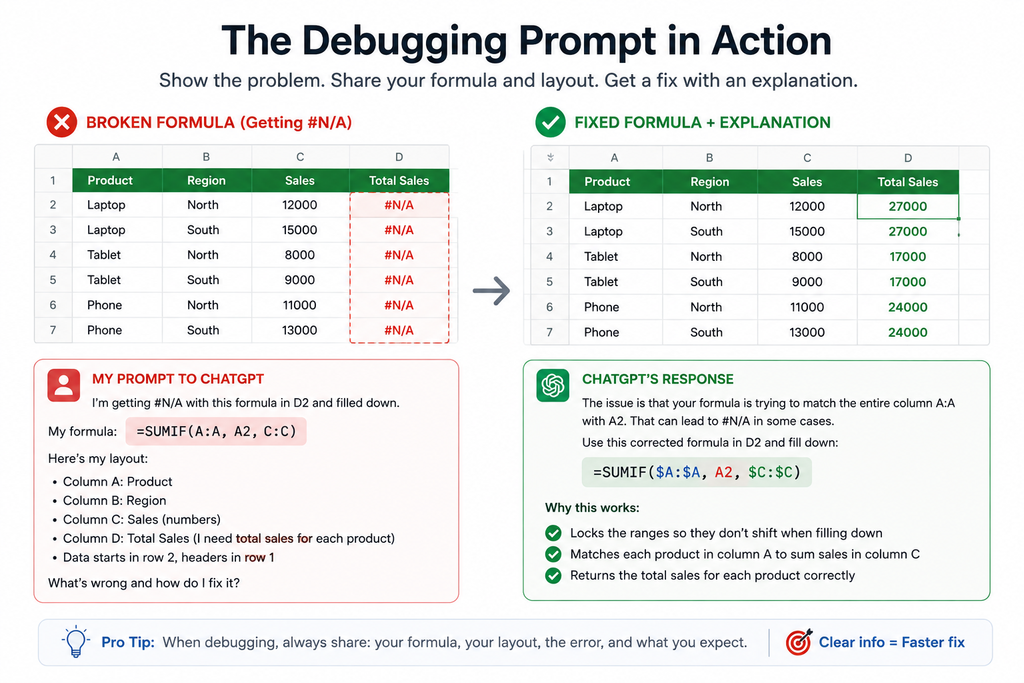
A formula that returns an error or an unexpected result is one of the most common follow-up situations, and it needs a different prompt structure than the original request.
Prompt: “This formula is returning [error message, e.g., #N/A or #VALUE!, or describe the unexpected result]: [paste the exact formula]. It’s in cell [reference]. I’m trying to [explain what the formula is supposed to calculate]. My data looks like this: [briefly describe or paste a sample row]. What’s causing the error, and how do I fix it?”
Pasting the exact formula and the exact error message, rather than describing the problem from memory, gives ChatGPT the specific detail it needs to diagnose the actual cause rather than guess at a generic fix.
Before/After: Seeing the Difference in Practice
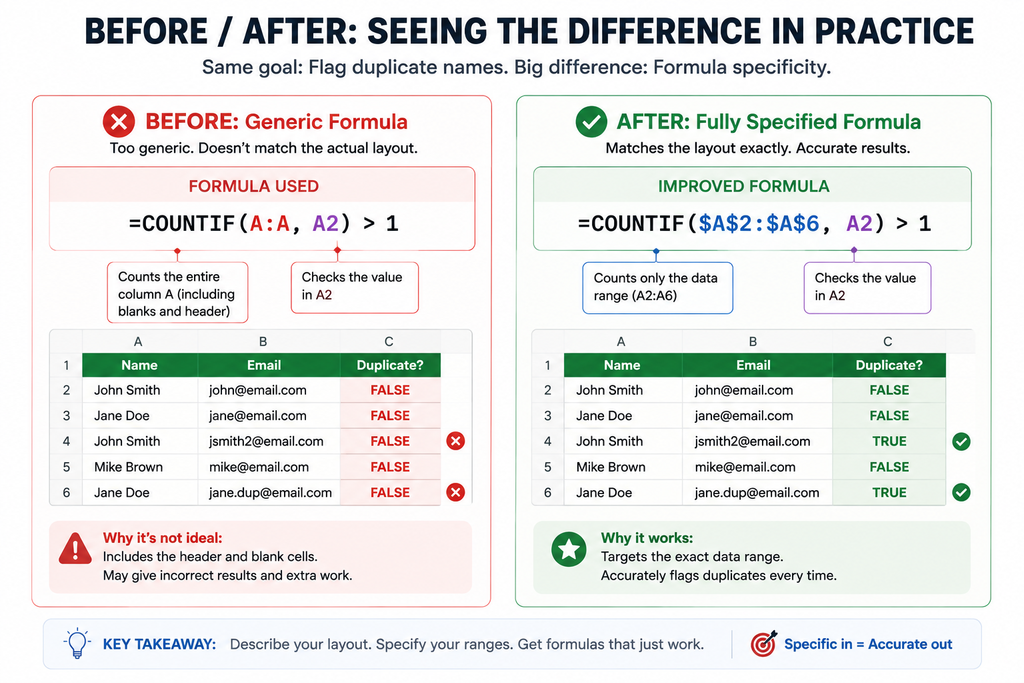
Vague prompt: “Write a formula to find duplicate entries in a customer list.”
Generic output: A basic COUNTIF formula built around an assumed range of A2:A100, with no handling for blank cells and no explanation of how to apply it beyond the first row.
Layout-specified prompt: “I have customer names in column B, from row 2 to row 500, with some blank rows mixed in. Write a formula for column D that flags ‘Duplicate’ next to any name that appears more than once in column B, ignoring blank cells, and leave it blank for unique entries.”
Resulting output: A formula built around the exact B2:B500 range, with a blank-cell check built in, and a specific note on how to fill it down the column — ready to paste in without modification.
The difference isn’t formula complexity — it’s that the second version was specified precisely enough that ChatGPT didn’t need to guess at range size, column letters, or how blanks should be handled.
Practical Tips for Getting It Right the First Time
Always paste a sample row or two of your actual data into the prompt when the structure is at all unusual — real headers and a real example value communicate far more than a description alone. Mention your Excel version if you’re using an older one, since some functions like UNIQUE, FILTER, and XLOOKUP are only available in Excel 365 and later, and a formula built around them will fail entirely in older versions. Once you have a formula, test it directly in your spreadsheet before relying on it — if the result isn’t what you expected, tell ChatGPT the exact result you got versus the result you wanted, rather than starting the prompt over from scratch.
What the Evidence Suggests
Across the guidance reviewed for this article, one point comes up consistently: an Excel formula prompt lives or dies on how precisely the spreadsheet’s actual layout is described, not on clever phrasing or an exhaustive list of examples to copy. A vague request produces a generic formula built on guessed structure; a request that states exact columns, exact ranges, and any relevant constraints produces a formula that’s typically usable without modification. The debugging workflow follows the same logic — pasting the real formula and the real error message consistently outperforms describing the problem from memory.
Frequently Asked Questions
Why does ChatGPT give me a formula that doesn’t match my spreadsheet?
Because it wasn’t told your actual column layout and had to guess one. Describing your real columns, ranges, and data structure before asking for a formula is the single biggest factor in getting a formula that works without editing.
Can ChatGPT fix a formula that’s already returning an error?
Yes, if you paste the exact formula, the exact error message, and a brief description of what the formula is supposed to calculate. Describing the problem from memory instead of pasting the real formula tends to produce a generic guess rather than an actual fix.
Do I need to know Excel functions by name to use these prompts?
No. Describing what you want in plain language, such as “total revenue where the region is West and the date is in Q1,” works just as well as naming a specific function. ChatGPT can choose an appropriate function based on your requirements.
Will a ChatGPT-generated formula work in older versions of Excel?
Not always. Functions like UNIQUE, FILTER, and
XLOOKUP are available in newer Excel versions, including
Microsoft 365, but may not be supported in older releases. Mention your
Excel version in the prompt if you’re using an older release.
Should I test a generated formula before using it in a real spreadsheet?
Yes. Always paste the formula into your actual sheet and check the result against what you expect before relying on it, especially for anything used in a report or shared document.
Can ChatGPT write VBA macros as well as formulas?
Yes. The same layout-first and sequence-first principles apply. Describing your workbook’s sheet structure and the exact sequence of actions the macro should perform produces a much more usable result than a vague request.